Fiddler is a great little free tool to trace HTTP/HTTPS requests. While it connects itself automatically to most browsers, thereby enabling you to trace all your browser web traffic, its not quite so automatic with other tools. Here are Fiddler’s instructions to configure it to work with different apps. For Java apps, the instructions say 
On SOAP UI, this is pretty simple. Go to File > Preferences > Proxy Settings, and type in Host=localhost and Port=8888, which is what Fiddler uses as its default.
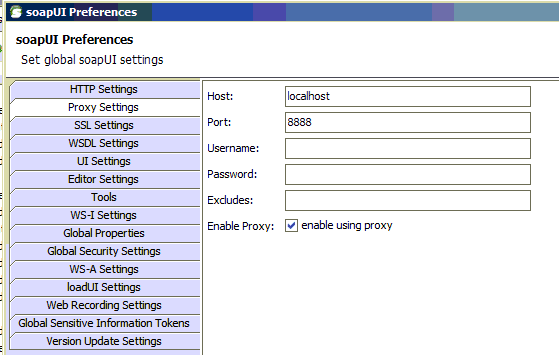
Click OK, and you’re all done! Try sending a WS request and you can see the trace in Fiddler now.
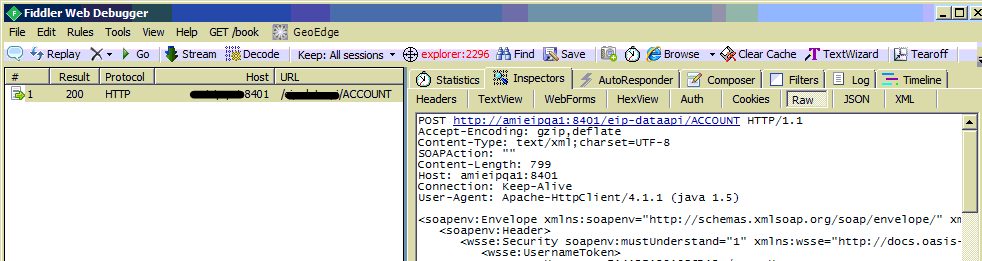
You can also set a filter in Fiddler to capture only Soap UI traffic. Simply drag the “Any Process” icon in Fiddler onto the Soap UI window. Your SoapUI screen will go black to acknowledge the filter setting. Happy debugging!
 Kicking Tech