This afternoon, I was trying to copy-paste an article I’d written in Word with careful formatting & inline pictures, to WordPress. Of course, it didn’t work as well as I’d hoped. The formatting went awry and none of the pictures carried over. Then I did a bit of Googling and found an easy way to publish articles to my blog straight from Microsoft Word 2013.
- File > New > Blog Post.
-
Follow the dialogs to register your blog account.
-
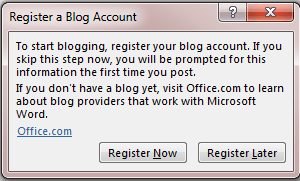
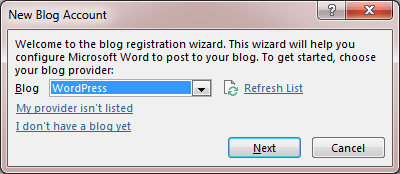

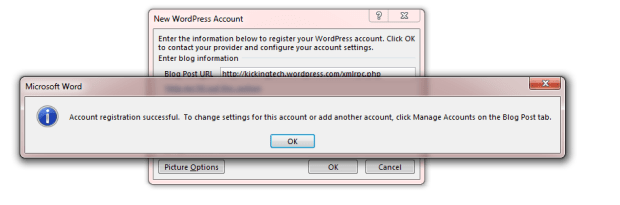
-
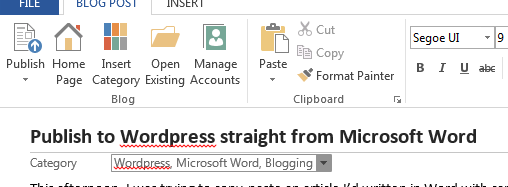
Done! Now type in your blog post, add pictures, format it the way you want, and just click on Publish to publish it straight to your blog. There is a Publish as Draft option too, it is available by clicking the down arrow below the Publish button. I would recommend you use this, because sometimes formatting changes slightly when Word uploads the file to WordPress, so you might want to open the post in WordPress and ensure its just the way you want it before you publish it.
- You can use the Manage Accounts button to manage multiple blogs & blog accounts.
-
Use the Insert Category button to categorize your blog post. I’ve noticed that this doesn’t always work though.
UPDATE – 3 Jan 2016 – I was just trying to do this after an almost year-long hiatus from WordPress and found that Word throws up a “Cannot connect” error unless you use a HTTPS URL for your blog.
 Kicking Tech
I really like your writing style, great info, thank you for putting up dbebbbcccgecgbef
Reblogged this on DI93IG WP and commented:
#WordPress Plugin