Alfresco is an open source Enterprise Content Management (ECM) system that manages all the content within an enterprise and provides the services and controls that help manage this content.
This is an entirely Java-based application and can run on any OS that can support a JRE and the Community Edition is fully customizable/extensible as it is open-source.

Alfresco is available as an all-in-one installer (includes the core application, PostGreSQL, Tomcat, and all other bits and pieces). This is suitable for a fresh install on a new system. But if you already have a Tomcat server & a PostGRE DB running on your system, the all-in-one can complicate your installation. This tutorial shows how to install Alfresco using the packaged WAR file on an existing Tomcat installation and connect to an existing PostGreSql DB service.
Download:
Use this link:
http://wiki.alfresco.com/wiki/Community_file_list_4.2.c
Scroll down to the ‘Individual Components’ section and download alfresco-community-4.2.c.zip. Unzip it. You’ll see the below structure: 
Here you can learn more about the various files and what they’re for.
Configure PostGreSql
I used PostGreSql with my Alfresco installation. If you have a different choice of DB (say MySql), the steps you need to follow may differ slightly, but would be very similar to below. For below steps, we’ll use the PgAdmin III tool that comes with PostGreSql. The version I’m using is 9.3.
-
In the Object Browser, right-click Login Roles > New Login Role and create user alfresco. Apart from the role name, other settings may be left as default.
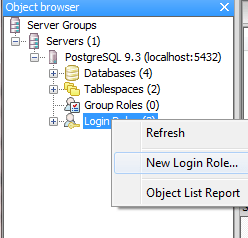

-
Right-click Databases > New Database and create database Alfresco. Choose the newly-created user alfresco as the owner for this DB. This ensures that the user has access to create tables within the DB (required when we start up the Alfresco app).

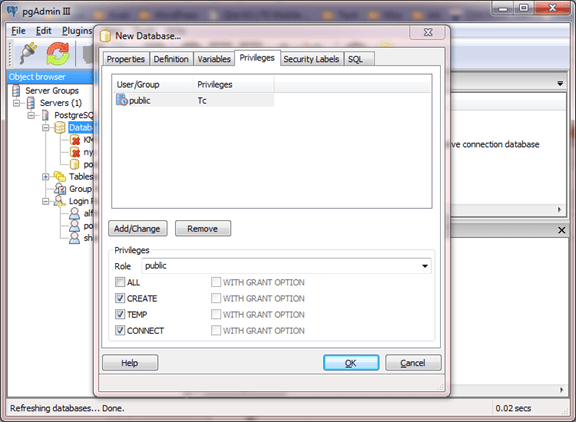
Setup the configuration file
- Go to the location where you unzipped the download file and navigate to web-server > shared > classes.
- Make a copy of alfresco-global.properties.sample and save it without the .sample suffix.
-
Open this file (alfresco-global.properties) and edit the configuration settings.
dir.root=D:/alfresco/alf_data
This is where Alfresco will store all its content. Ensure this is an empty directory, in case it already exists
db.username=alfresco
db.password=alfresco
db.name=alfresco
db.host=localhost
db.port=5432
db.pool.max=40
These are common DB properties, which you’ll need to specify irrespective of what DB you are using.
db.driver=org.postgresql.Driver
db.url=jdbc:postgresql://localhost:5432/alfresco
These properties are specific to PostGreSQL. If you are using a different database, just find the appropriate section and uncomment/edit it. (The configuration file already has placeholder properties for most other DBs.
ftp.enabled=true
ftp.port=1121
ftp.ipv6.enabled=false
These properties tell Alfresco what FTP port to use. If the default port 1121 is already used by a different application, choose another one.
Setup Tomcat
- I used Tomcat 6.0.37. By default Tomcat 6 does not have a shared/lib or shared/classes folder under Tomcat Home. So those need to be created.
-
Then, we need to tell Catalina to use those 2 directories when starting up Tomcat. Open up <Tomcat Home>/conf/catalina.properties and edit the shared.loader property as below
shared.loader=${catalina.home}/shared/classes,${catalina.home}/shared/lib/*.jar - Now move the alfresco-global.properties file you created in the previous section to shared/classes.
- Go back to the Alfresco download zip and copy the database driver in web-server/lib to shared/lib. In my case the file is called postgresql-9.0-802.jdbc4.jar. Alfresco only ships with the PostGreSql driver. So if you’re using a different database, the corresponding database driver will have to be separately downloaded and moved to shared/lib. You will also need to edit the global properties file and set the driver name accordingly.
-
Next add Heap Space to Tomcat to prevent heap errors during operation. For this, go to <Tomcat Home>/bin/startup.bat (assuming you are on a Windows system, else edit startup.sh) and add this line at the top.
set "CATALINA_OPTS=-Xms256m -Xmx512m -XX:MaxPermSize=196m"
Start Tomcat & Deploy Apps
- Now start Tomcat: Go to <Tomcat Home>/bin/startup.bat
- Once Tomcat is up, copy web-server/webapps/alfresco.war from the download zip to the <Tomcat Home>/webapps directory. Keep an eye on the Tomcat console for any errors.
-
Next, copy web-server/webapps/share.war to <Tomcat Home>/webapps.
If any DB errors, check the global properties file and ensure the DB settings are all correct: port number, database name, username, password, etc. If any errors due to missing library files, ensure the shared settings were done correctly and that Tomcat is able to load the classes within <Tomcat Home>/shared/ when starting up.
Try it out!
Try these 2 URLs:
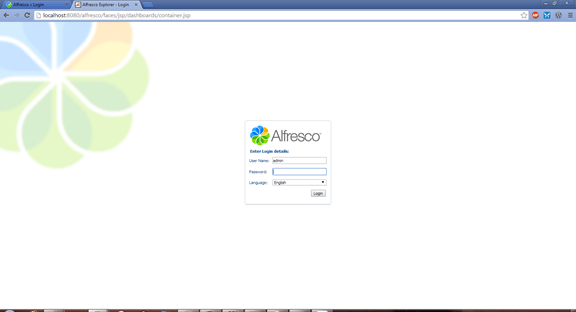
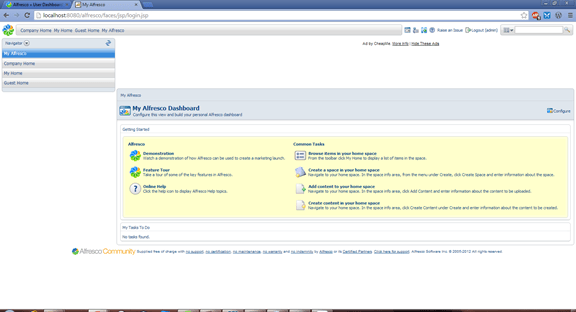
http://localhost:8080/alfresco
Default username & password for both webapps is admin/admin.
Substitute the right port number in case your Tomcat is not running on 8080 (check <Tomcat Home>/conf/server.xml and look for <Connector port=”XXXX” protocol=”HTTP/1.1″ and check what port is being used.



Alfresco also provides a File Transfer Receiver, which can be used by it to send/receive files from a remote file system. In the above case, the file system is on the same server as the Alfresco web application, so this is not needed. I will cover this in a different post. I will also touch on the topic of how to connect cmdbuild (open source configuration management tool) to Alfresco to save asset metadata and attachments in a different post (EDIT: Here it is)
 Kicking Tech
Hi man, how i do in the step 3 (Open this file (alfresco-global.properties) and edit the configuration settings) if i am doing on ubuntu distro. I’m try to install Alfresco for openMAINT.
Regards, Alwys Rodriguez.
how did it go?
Really late to the party here, I’ve been inactive on my blog for a while now. Let me know if you still need any help with this. You could just open it with any text editor, like Vim.
Hi, Tried this but it didn’t work, the Alfresco war file just had a fit and I have not been able to make it start at all. Nice idea though. Thanks for the blog, unfortunate that it doesn’t work for me.
Hi, maybe you could paste any errors from the logs here so I could try to help?
Hi, is it correct: shared.loader=${catalina.home}/shared/classes,${catalina.home}/shared/lib/*.jar or the correct is this: shared.loader=”${catalina.home}/shared/classes/lib”,”${catalina.home}/shared/classes/lib/*.jar” , the same format of the common.loader? Thanks
Hello Reginaldo. You shouldn’t require the quotes, it should work with the same format as common.loader.