Note: I still use VS 2008 for software development, as do several developers out there working for large corporate entities that are much slower to upgrade technologies. I’ve only really tested LINQ with VS 2008, although it is possible it might work the same way with newer versions.
LINQ, or Language-Integrated Query is a .NET Framework component that adds native querying capability to .NET languages. LINQ with XML lets you work with XML documents very easily. I like to use the LINQ to XSD Preview for my XML work in VS 2008. The LINQ to XSD Preview is basically a project that provides typed XML programming support on top of the existing LINQ to XML framework. With this, you can generate classes for your XML objects defined in a XSD.
Prerequisites
You can find the setup here – http://www.microsoft.com/en-us/download/details.aspx?id=12911. Once installed (installation instructions are also available at the link), all you need to do is edit your environment variables to add the path to the installation directory to the PATH variable.
Tutorial
Create a new project in VS 2008. I’m creating a Console Application.

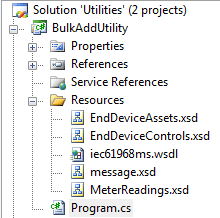
Now we create a folder called “Resources” within the project directory and put some XSD files in it.
Here is what my Solution Explorer looks like after this:
Now we’ll generate classes out of the schema files.
Right-click on the project in the Solution Explorer > Add Reference. Scroll down & choose Microsoft.Xml.Schema.Linq.dll. Mine is installed at C:\Program Files (x86)\LINQ to XSD Preview\Bin.

A little hack is required to get Visual Studio to use the LINQ Preview to generate the classes. Open up the project’s .csproj file using a text editor. Make the following addition to it, just after <Import Project=”$(MSBuildToolsPath)\Microsoft.CSharp.targets” />
<Import Project=”$(LinqToXsdBinDir)\LinqToXsd.targets” />
Once you save this file, and go back to Visual Studio, it will ask you if you want to reload the project. Choose Yes.
Now you can select each of your XSD files, and set build action to LinqToXsdSchema.

All that’s left to do is a build. Once done, you can see in the Output window that the LINQ source has been placed at obj\Release. You can open this file and see the translated source.


Now you’re ready to write your code. The LINQ build directly translates all XSD types & names into C#, so it is pretty easy to find & populate the XML elements. As a starting point, type in one of the target namespaces from your XSD, and hit a “.” to see the auto-populate list of XML elements available.

You’re ready to go!
 Kicking Tech
Reblogged this on Dinesh Ram Kali..