CMDBuild is an amazing configuration/asset management tool that takes its support of the ITIL way of doing things a big step forward, by providing links to a generic workflow engine, Shark (Enhydra Shark, now called Together Workflow Server). This way, CMDBuild is able not only to manage the update of the asset inventory and their functional relations, but also to enable the definition and control of the processes for IT service management.

A process includes an activity sequence, carried out by operators and/or computer applications, every application represents an operation that has to be carried out within the process. In keeping with their system flexibility, CMDBuild provides a generic workflow engine to model processes case-by-case, rather than implementing a series of rigid and predefined processes.
Here we take a look at how to install Enhydra Shark for CMDBuild.
I personally found it a not-so-easy process to go through the documentation for Enhydra Shark (Together Workflow Server), they could do with some changes to simplify things and highlight the feature-packed product that they have. Installing Shark for CMDBuild, however, is a breeze. The CMDBuild site provides a CMDBuild-optimized version of the Shark application, ready to drop into Tomcat and get going. From the CMDBuild download page, just download the shark webapp (named shark-cmdbuild-version.zip). This zip file contains a WAR, that you need to drop into Tomcat, and a Readme page, that covers everything you need. Here are the basic instructions filled in with some additional comments from me based on how I went through with the process.
- First, deploy the WAR file (after renaming it to shark.war) into Tomcat (either deploy using the manager webapp, or drop straight into the <Tomcat>/webapps directory). At this point, Tomcat will throw a bunch of errors in the console, since things aren’t configured yet. But it will do the job of unpacking the WAR file.
- Now we are ready to dive into the unpacked app to make our configuration changes.But before that, we need to setup a CMDBuild user account for Shark.
- Setup a new user (I called mine “workflow”) using the Administration Module UI in cmdbuild.
- Add it to CMDBuild’s auth.conf file (under <Tomcat>/webapps/cmdbuild/WEB-INF/conf as a privileged service user.
serviceusers.privileged=workflow
- Go to <Tomcat>/webapps/shark/conf/Shark.conf and do the following:
- Change the section at the end of the file named “CMDBuild Custom Components Settings”: Add in CMDBuild’s root URL, and give it the credentials it needs to connect. This should be the credentials for the privileged service account you just created in step # 2.
-
org.cmdbuild.ws.url=http://localhost:8080/cmdbuild/ #CMDBuild's root URL
-
org.cmdbuild.ws.username=workflow
org.cmdbuild.ws.password=*****
-
- In shark/META-INF/context.xml change the name of the database, using the name
of the CMDBuild database. For example,url="jdbc:postgresql://localhost/${cmdbuild}"should be changed to
url="jdbc:postgresql://localhost/cmdbuild"
for a database named “cmdbuild” in a local PostgreSQL installation.
- Note: Shark does not take well to databases that have capital letters in their names. If your DB is called “CMDBuild” and you give this name in context.xml, Shark will look for a database named “cmdbuild” and will fail to start up.
- Please note that Shark uses the same database as CMDBuild, storing its data inside the “shark” schema.
- The ‘shark’ user is created by CMDBuild with the following sql (${cmdbuild_home}/WEB-INF/sql/shark_schema/01_shark_user.sql). This usually happens when you first run CMDBuild, and set it up with a Demo/Empty database & select the “Create a Shark schema” option, so you should probably not have to do anything at this point.

- In case you don’t have a shark user/schema in your CMDBuild database, run this SQL to set things up.
CREATE ROLE shark LOGIN
ENCRYPTED PASSWORD 'md5088dfc423ab6e29229aeed8eea5ad290'
NOSUPERUSER NOINHERIT NOCREATEDB NOCREATEROLE;
ALTER ROLE shark SET search_path=pg_default,shark;
Please note that the last line is absolutely needed when using Shark on CMDBuild’s database.
- Change the section at the end of the file named “CMDBuild Custom Components Settings”: Add in CMDBuild’s root URL, and give it the credentials it needs to connect. This should be the credentials for the privileged service account you just created in step # 2.
- Once this is done, re-start Tomcat. You should be able to see a successful ‘ready and waiting’ message in your Tomcat console, if all of the config has been done right.


- Once Shark is up and running, you can configure the workflow module in the CMDBuild Administration area.
- Go to Administration Module > Setup > Workflow and enable Shark, enter shark’s URL, username & password.
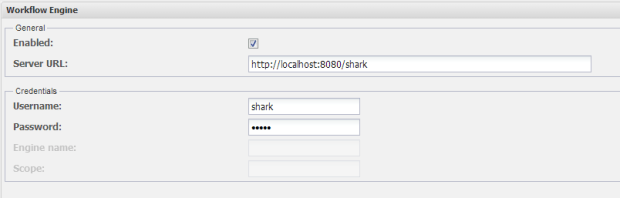

Save, and you’re ready to start automating and organizing your asset inventory management workflows!
(More on using Shark for CMDBuild to follow…)
 Kicking Tech
Hi,
First of all, thanks for the tutorial.. However, I don’t know why I am getting this error “XA UserTransaction Lookup name is full” although I have followed the tutorial step by step…
Please any hint?
Hi Dhoha, apologies for the late reply. This is a warning log entry that can occur when you startup Shark, but it shouldn’t halt your Tomcat startup. Let me know if you were able to get Shark up and running.