It has been a long time since I have posted on this blog. Hoping to get back to it and post more often this year!
This post is a follow-up to my old post (Connect to Alfresco from CMDBuild) and gives a short intro on using the CMDBuild web services to connect to Alfresco. The REST/SOAP endpoints provided by CMDBuild are invaluable in building additional connectors/interfaces of your own. The web services (refer here for the manual) can be used for all basic CMDBuild functions – add/update/delete cards, add/update/delete relations, and so on. CMDBuild also provides a few web services to work with card attachments (that are internally stored in Alfresco) – upload/download/delete attachments, update attachment descriptor and get attachments list.
As a prerequisite check, you may want to login to CMDBuild and open any card: Check the Attachments tab in the Card Pane on the bottom half of your screen. It should be enabled (if you have followed all the steps on my previous post). You should be able to add & delete attachments, which means the interface between CMDBuild & Alfresco is working fine). This post also assumes you have written some code using CMDBuild webservices in the past (I will add another post on this shortly).
Step 1: Connect to CMDBuild web service
We will use the SOAP UI tool at first to test connectivity and try out the web services.
SOAP UI Setup
- Add a new project to SOAP UI – Use your local URL for CMDBuild to setup the WSDL. On my machine, its http://localhost:8080/cmdbuild/services/soap/Webservices?wsdl
-
Once SOAP UI sets up the binding, dummy requests will get created for all the web service operations.

-
Create a security header for the project
- Right-click on the project name > Show Project View > WS-Security Configurations > Outgoing.
-
Add a configuration of type Username. Provide user credentials that can be used to connect to CMDBuild (the same credentials you use on the UI will do).

-
To use this security configuration for a SOAP request, you must set it in the Auth tab (Auth > Add New Authorization > Basic > Choose Outgoing WSS.

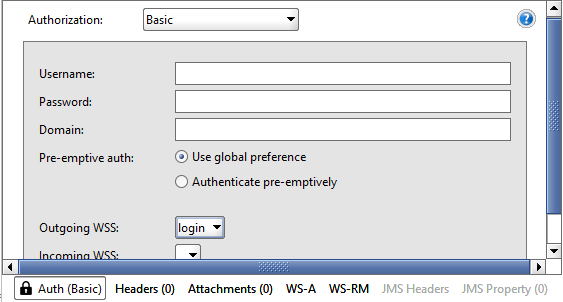
- Right-click on the project name > Show Project View > WS-Security Configurations > Outgoing.
Test the uploadAttachment web service operation
-
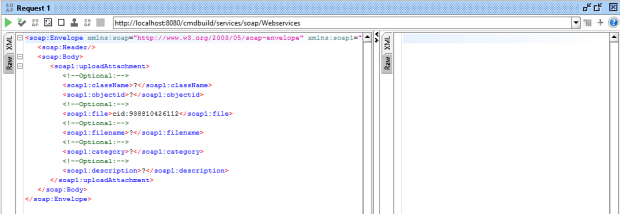
Find & open the uploadAttachment web service. The sample request looks like this –
-
You can update this request with correct className & objectId (wherein objectId = CMDBuild card id, which is an internal reference that’s not visible on the web UI). You can find the cardId for a card by using the GetCardList or GetCard web service using the Code of the card you are looking for.

-
If the upload request is successful, you will see a flag true in the response.
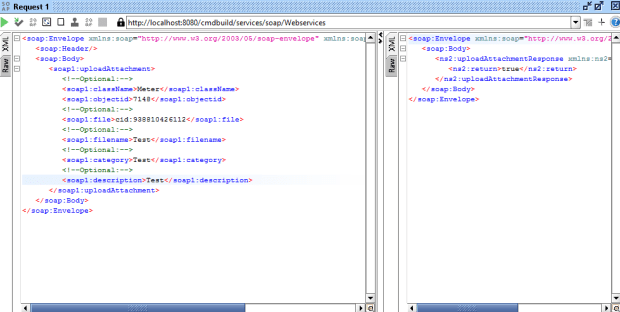

This is of course, a bad file that has no content, since we used invalid filecontent. But it demonstrates that the web service is working fine.
Step 2: Write some code!
Now we will upload an actual file via this web service. (I have given very little code here for demonstration. If you need assistance setting up the cmdbuild web services in your code, watch out for my next post.)
-
The CMDBuild webservice expects the file content in Base 64 encoded format. Here is a sample code snippet showing this (I used Apache Commons IO to read the file, and Commons Codec to do the base 64 conversion).
public static byte[] convertImageIntoBinaryBase64(String dir, String imageFileName) throws IOException { File imageFile = new File(dir, imageFileName);//dir – directory containing the file, imageFileName – file name Base64 base = new Base64(); return base.encode(FileUtils.readFileToByteArray(imageFile)); } -
We use this code in a web service client to build the SOAP request.
UploadAttachment attachmentRequest = new UploadAttachment();
attachmentRequest.setCategory;
attachmentRequest.setClassName(assetType);
attachmentRequest.setDescription;
attachmentRequest.setFilename(photoName);
attachmentRequest.setObjectid(assetCard.getId());
attachmentRequest.setFile(ImageBase64BinaryConverter.convertImageIntoBinaryBase64(uploadDir, photoName));
service.uploadAttachment(attachmentRequest);
-
Invoke this code with valid values for photoName & uploadDir.
Done!

Double-click on the attachment record and it should open up in the browser.
 Kicking Tech
Hi Kicking Tech,
how can I contact you?
Thank you
Hi Ilaria, sorry for the late reply as I haven’t been active on my blog lately. You may contact me @ charanya85_r@yahoo.com
Hello Kickingtech,
a quote ” The documentation I could find for CMDBuild indicates that it wants to use the Legacy CMIS web services API for Alfresco 3.4. This no longer exists. If the CMIS client library in CMDBuild has been developed correctly, it should be able to use the OpenCMIS CMIS web services API. ” from https://community.alfresco.com/thread/214704-alfresco-wont-start-webservice-with-openmaint-cmdbuild#comment-752681
I wonder if according to ALFRESCO docs on their Site. http://docs.alfresco.com/5.0/pra/1/topics/cmis-welcome.html is is possible to connect the new Alfresco with the old OpenMaint??
This should be possible!!
I’ve used Alfresco 5.x but have not upgraded to this version in the environment where it needs to interact with CMDBuild. I doubt if there is compatibility beyond Alfresco 4.x yet, I haven’t seen anything in the release notes for CMDBuild. Its hopefully on their roadmap.